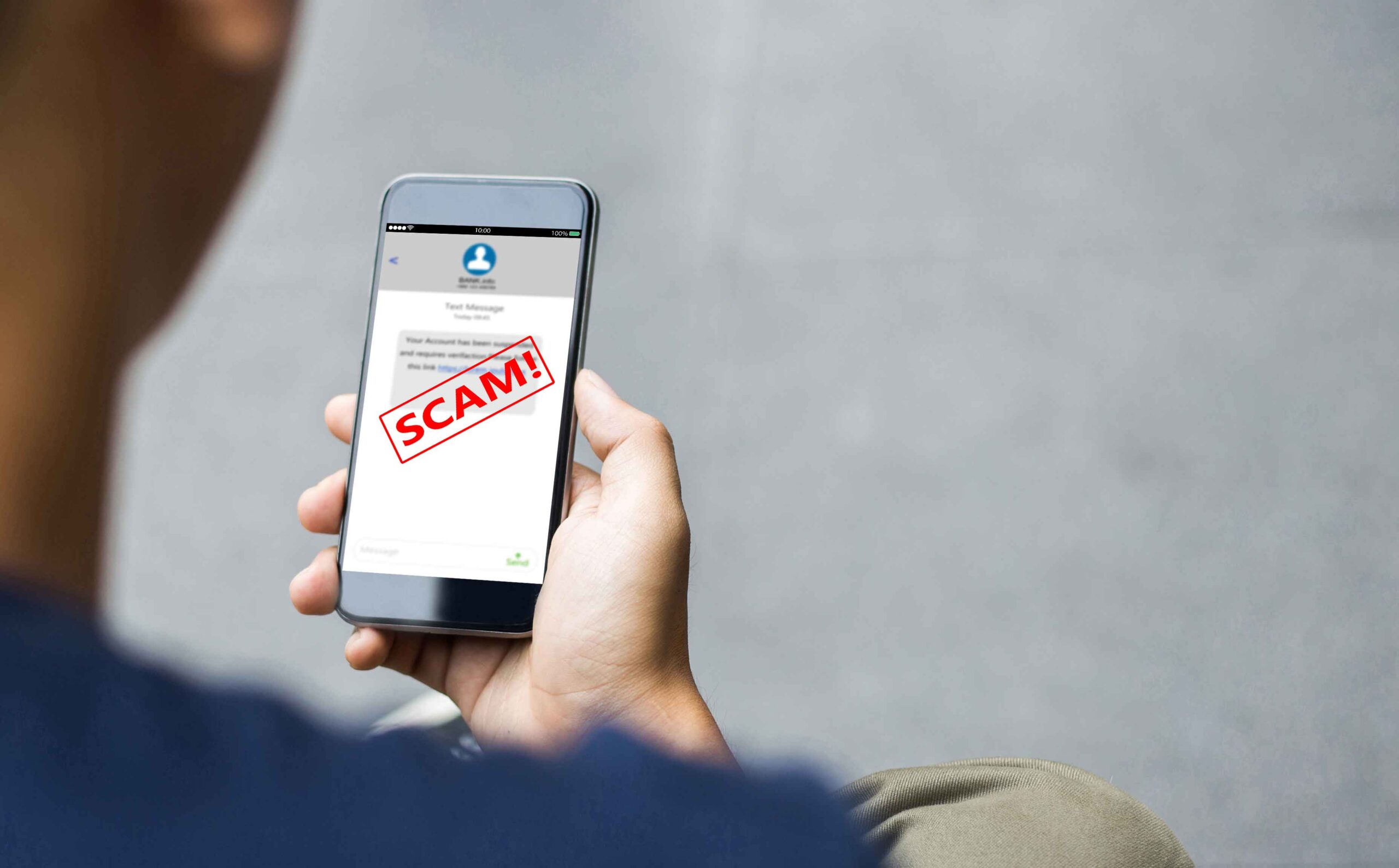
You look at your phone and notice a notification from Meta. Your heart skips a beat as you read the message in your business page inbox, “Your Facebook Page is Schedule for Permanent Deletion due to copyright infringement. Click the following link in the next 24 hours to verify your account or risk permanently losing it.”
Something about the message looks fishy, but you’re not sure. What should you do?
Lately, there has been a significant surge in Facebook spam and phishing messages via Messenger targeting Facebook Business Pages. These messages can be alarming and send a rush of adrenaline through your body. However, resist the urge to click the link, as these are designed to harvest your account information.
Once you realize the message is spam, the trouble doesn’t end. More similar messages may follow, making the spam itself a significant nuisance.
Here are a few strategies I’ve found helpful when dealing with these types of Messenger messages:
1. Make sure you Facebook account is protected with two-factor authentication on Facebook.
2. You can delete these messages and block the account (if it still exists—many are deleted by the time you get the message).
3. You can setup a Spam filter for your Facebook Messenger – which I have found to be a very helpful option!
Setting Up a Facebook Messenger Spam Filter
If you establish an automatic filter for your Messenger, any messages meeting those criteria will be promptly removed helping to keep your inbox clutter-free. Here’s how to do that.
1. Go to Meta Business Suite and navigate to your inbox.
2. At the top, click on “automations” (symbolized by an atom).
3. Click “create automation” on the top right, then select “start from scratch.”
4. Name it something like “spam filter.”
5. Choose Messenger as the channel.
6. Under “when this happens,” select “new message received.”
7. Click “add additional conditions” and select “keywords” and “any of the following keywords.” Add a new condition for each keyword.
8. Be cautious with keywords to avoid missing genuine messages (example keywords: deletion, deactivate, trademark, infringes).
9. Under “take this action,” select mark as, and then choose “move to spam.”
10. Hit “save changes.”
You can edit or remove this automation at any time.
If you receive emails from Meta that you’re unsure about, check for these affiliated addresses:
- notification@facebookmail.com
- noreply@facebookmail.com
- @business.fb.com
- @support.facebook.com
- @fb.com
- @meta.com
- @internal.metamail.com
- @go.metamail.com
- advertise-noreply@facebookmail.com
- update@em.facebookmail.com
- @mediapartnerships.fb.com
You can learn more about those in this article.
Hopefully this information helps you to better manage Facebook spam and prevent scams moving forward.